Français
 Español
 Italiano
 Deutsch
 Português
 中文
中文 日本語
日本語Our free online coloring tool has a new version! You can still bring your favorite drawings to life directly in your browser, but coloring is now more comfortable on a phone, tablet or computer. This update adds closer zoom, touch and trackpad gestures, a more compact mobile palette, and a clearer way to save and share your creations.

The essentials you already know
If you have not tried online coloring yet, here is what you can do. Open a compatible drawing using its Color Online button, choose a color, and start creating. There is no app to install, and you do not need an account to color or download your finished image.
- Fill an area with the paint bucket. Click or tap inside a shape to add color in one step.
- Draw freely with the brush or pencil. Add your own details, strokes and finishing touches.
- Choose from a varied color palette. Explore bright shades, softer tones and custom colors.
- Experiment with undo and redo. Change your mind without starting the whole drawing again.
- Download your creation. Keep a colored image on your device when you are ready.
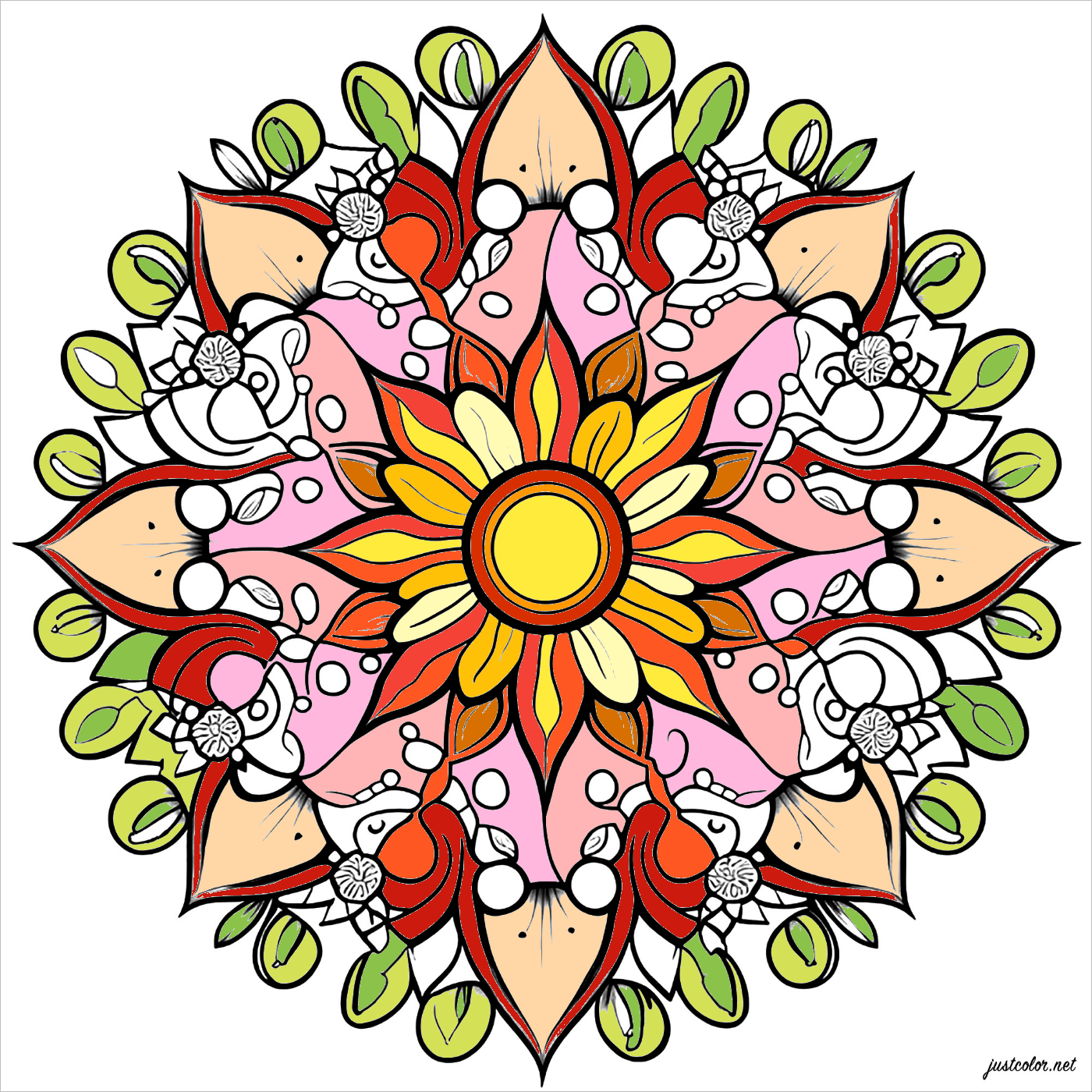
Mandalas, animals, nature scenes, artwork and seasonal designs are all good places to start. Look for the Color Online button on the drawings you would like to try.
What is new?
Zoom up to 800% — with your fingers or trackpad
Small details are easier to reach with a zoom range that now goes up to 800%. On a phone or tablet, spread two fingers apart over the drawing to zoom in, or pinch them together to zoom out. On a compatible desktop browser, you can also use the pinch gesture on your trackpad.
The + and − buttons are still available. Use the hand tool to move around an enlarged drawing, and click or tap the zoom percentage to return to 100%.
A tidier palette on mobile
The mobile palette now keeps a compact selection of colors close to the drawing. The two custom-color squares sit alongside the standard shades, so it takes less scrolling to choose a color and get back to coloring. Open More colors whenever you want the wider selection, including pastels and neutral tones.
Help keep color inside shapes
A tiny break in an outline can let the paint bucket fill more than you intended. The new Prevent color leaks setting can help bridge these gaps. It is Off by default: try Small gaps first, or the stronger setting if needed. On mobile, you will find it behind the settings button near the palette.
This is a useful helper rather than a guarantee for every drawing. If color escapes, undo the fill and try another setting. For a larger opening, you can also close the gap with the pencil before filling the shape again.
Smoother coloring and clearer controls
We have improved the way the drawing is rendered and how filled colors meet the outlines, for smoother edges where the source image allows it. You will also find clearer tool controls, brush and pencil cursors on desktop, and a confirmation window before resetting your drawing.
Download, save or share: choose what suits you
The two main actions now have distinct purposes:
- Download saves a PNG image to your device. For members, this does not request publication in the gallery.
- Save in my account keeps your creation in your member account. Sign in or create an account to use this option.
If you are signed in and would also like to share your work, select Also publish when saving to my account before saving. That option applies to the account-save button, which becomes Save and publish. Publication is subject to the site’s quality and moderation checks.
You can browse other artists’ work in the community creations gallery. Creations now open in a larger viewing window on the same page, making it easier to explore them without opening extra tabs.
A few tips before you start
Zoom in for small shapes, then return to 100% to see how your colors work together. Try custom colors to build your own palette, and use undo freely while experimenting. On desktop, Ctrl + Z or ⌘ + Z lets you undo a change quickly. The tool also includes a Tips section and an FAQ if you need a little help along the way.
Ready to give the new version a try? Choose a drawing and start coloring online — or reopen a favorite coloring page and select Color Online.